Signs of AI slop in design
AI can build a landing page in a minute. The problem is that it builds the same page every time. People have seen it so often that they spot it right away, and then they trust the product less.
We collected the signs that designers and design tools point out most often. Each one is fine on its own. But put a few of them on one page, and people will think nobody designed it.
1. Colored stripe on rounded cards
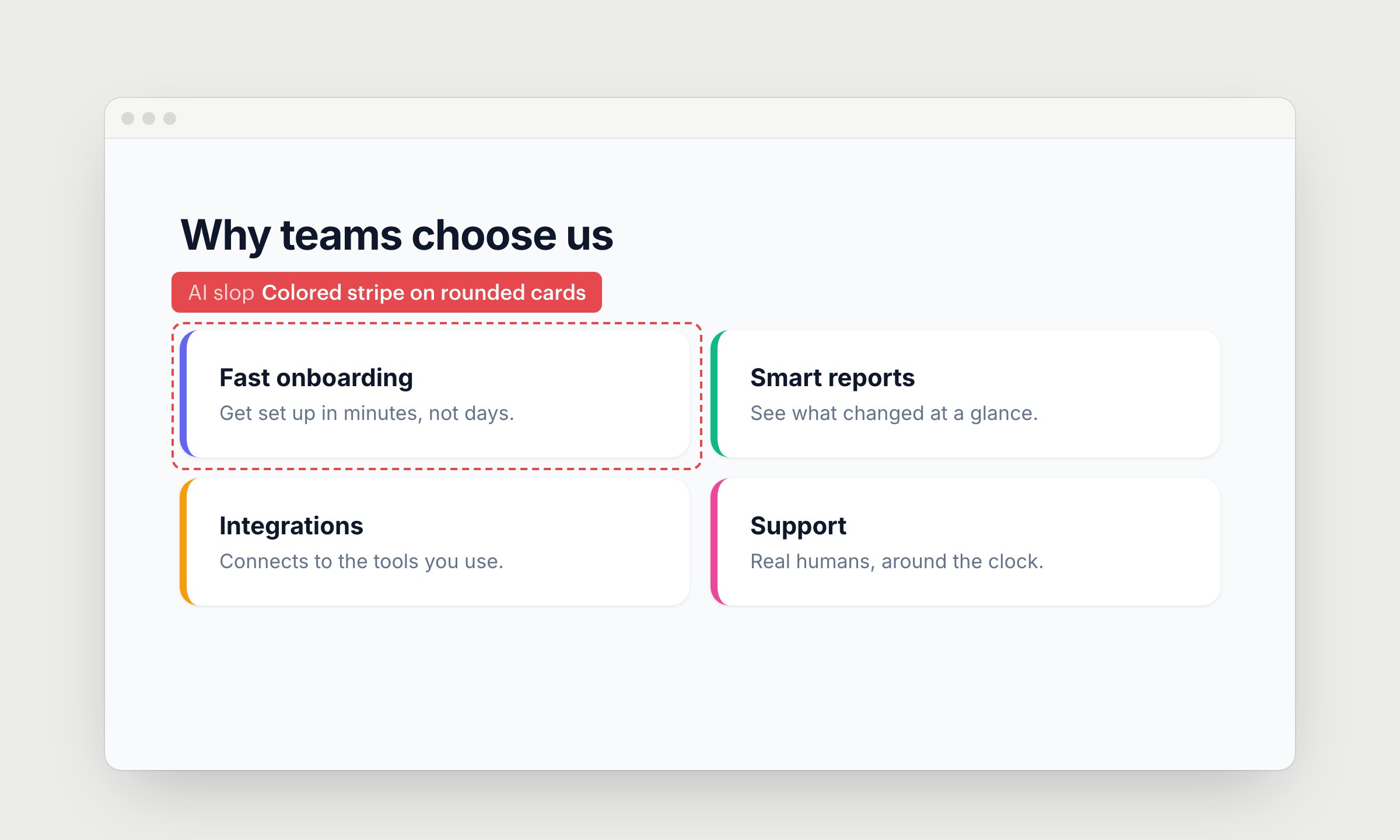
A thick colored line on one side of a box is an old way to mark alerts and warnings. AI puts it on every card to make plain content look more designed. Readers learn to ignore it, so the day you need to show a real warning, the stripe no longer works.
Keep colored edges for status: errors, warnings, things that need action.
2. Borders around every block
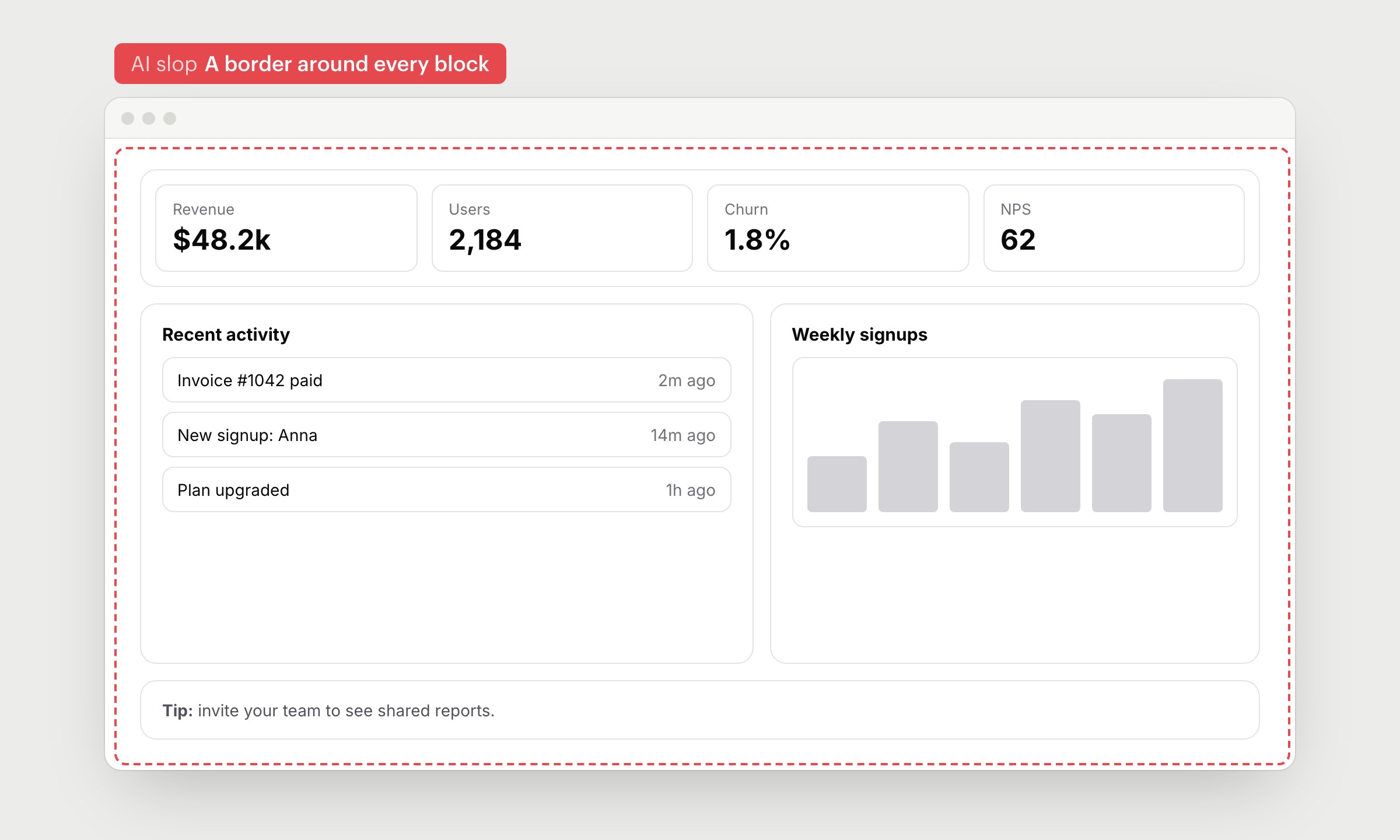
AI draws a border around each section, then around each item inside it. Stats, lists, charts and tips all sit in their own boxes, often with boxes inside boxes. When everything has an outline, borders stop telling people what belongs together, and the screen turns into a grid of lines.
Group things with spacing and headings first. Add a border only where a block really needs to stand apart, like a selected item or a form.
3. Colored italic text for accent
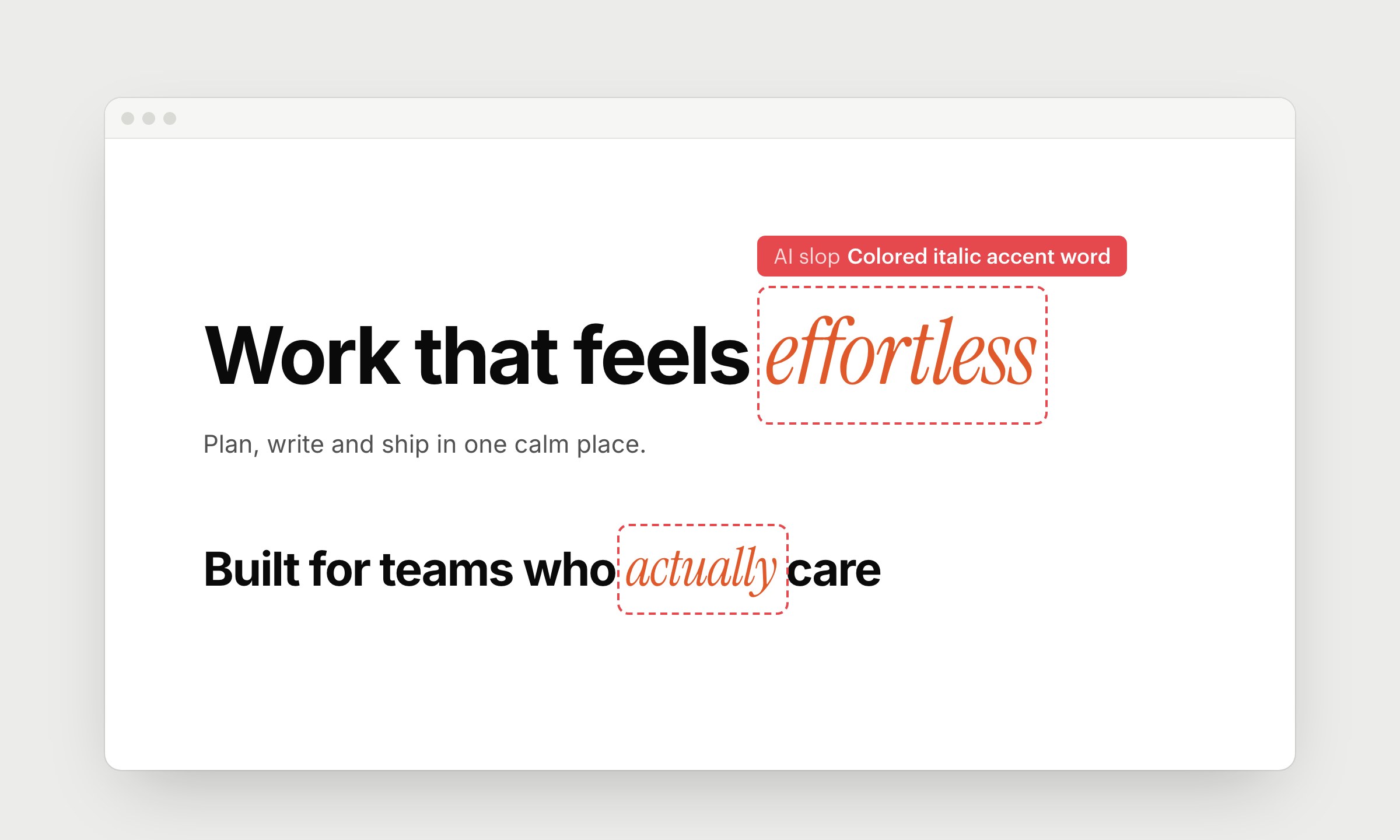
Mixing a bold sans with one word in colored italic serif is the current shortcut for a "premium" headline. AI repeats it in every heading, and the word it picks is rarely the important one. It adds a 2nd font and an accent color to the page for no reason.
Stress a word only when the message needs it, and do it once per page at most.
4. All caps label above every heading
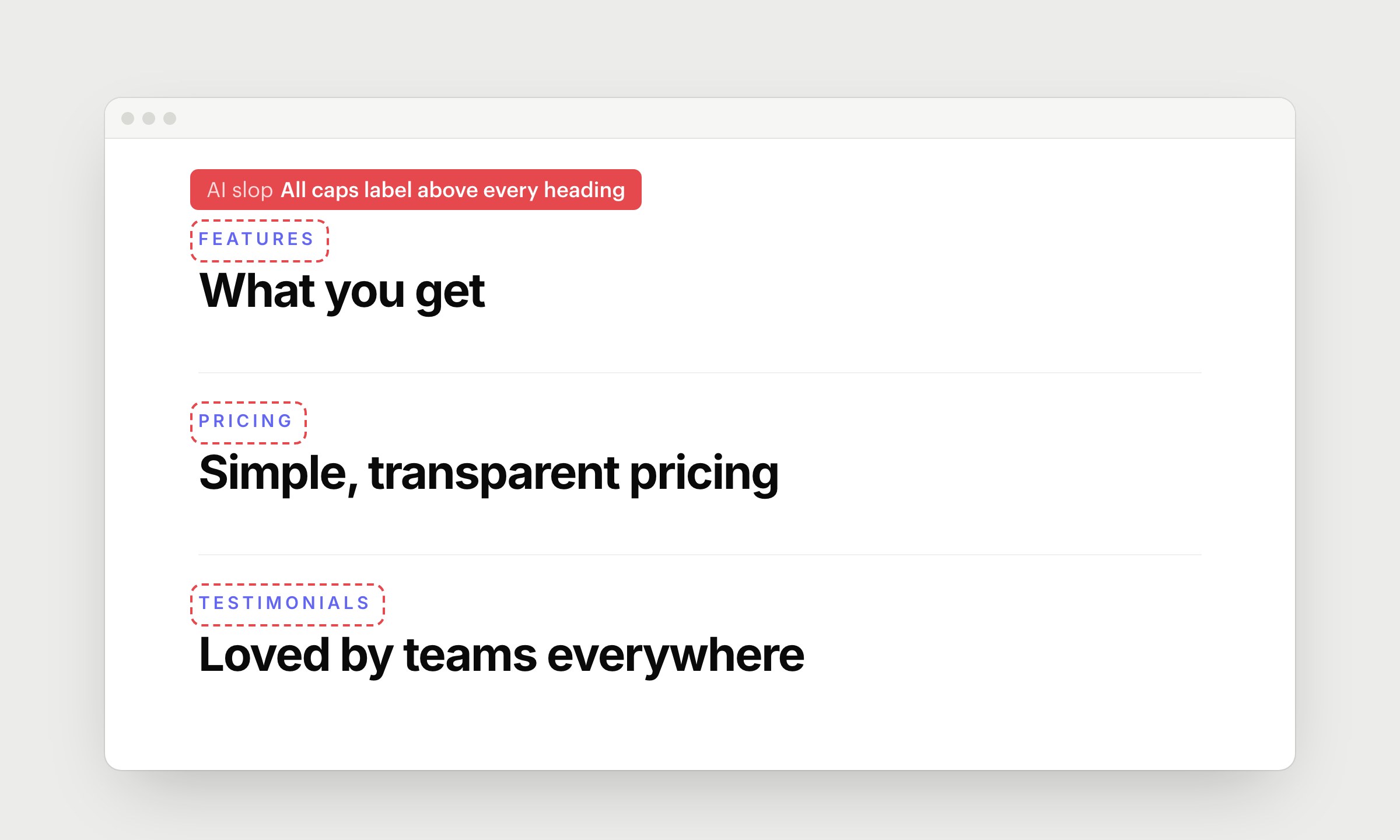
Designers call it an eyebrow: a tiny uppercase word above the heading. AI adds one to every section, and it usually names the section type, which people can already see. It's an extra line to read that doesn't tell anyone anything.
Drop it. If the label has real information, like a date or a category people filter by, work it into the heading.
5. Badges and dots that mean nothing
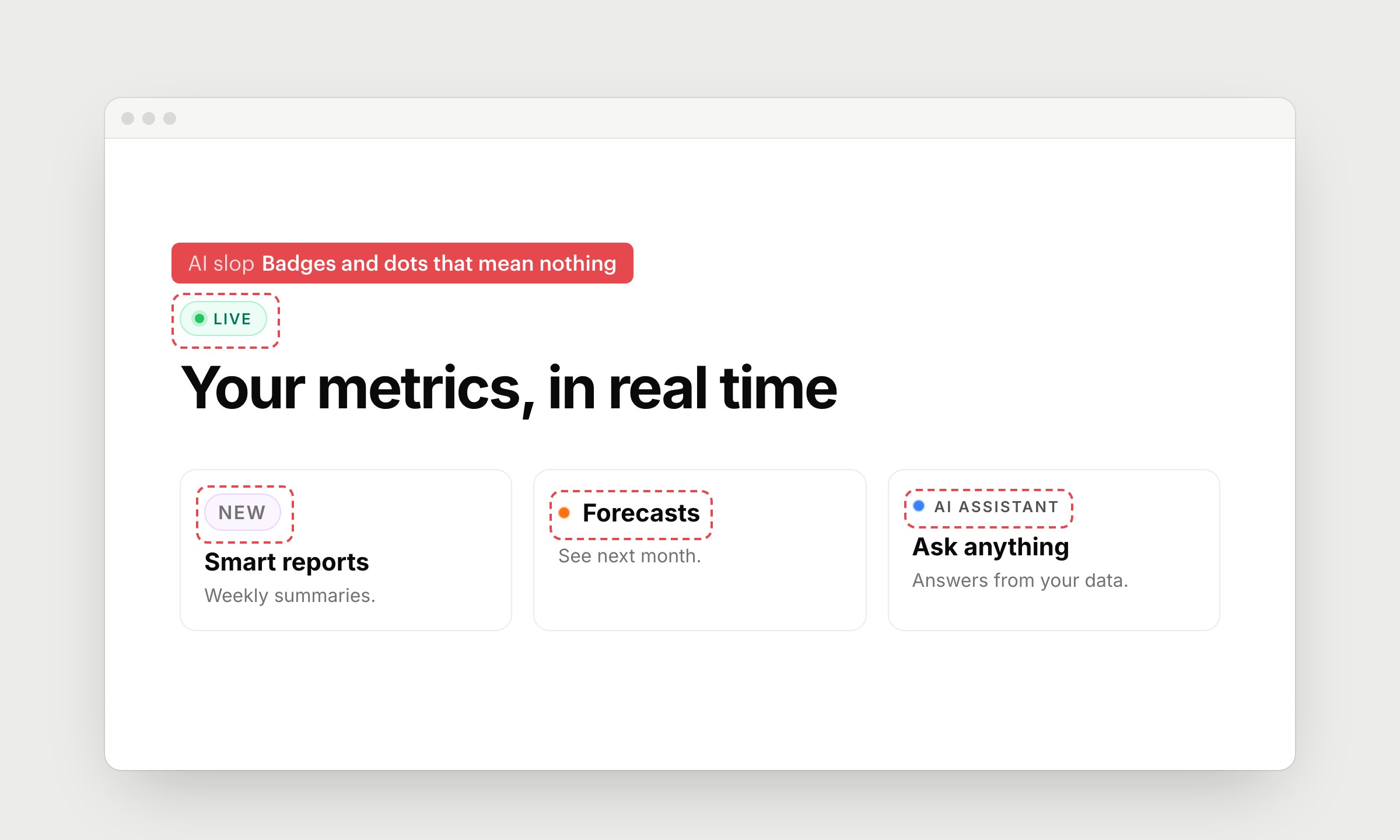
AI loves small markers around headings: a pill with a word like "NEW", "BETA" or "AI" above the title, a colored dot next to a section name, a dot before a small label. The most common one is a green dot with "LIVE", even on pages where nothing is live. Every marker gets its own color, and nothing explains what the colors mean. Badges only work when they're rare. If every feature is new, none of them are.
Use a badge when it changes what the user does, like a paid feature or a real status. Give colors one meaning across the whole product.
6. Monospace labels and inputs
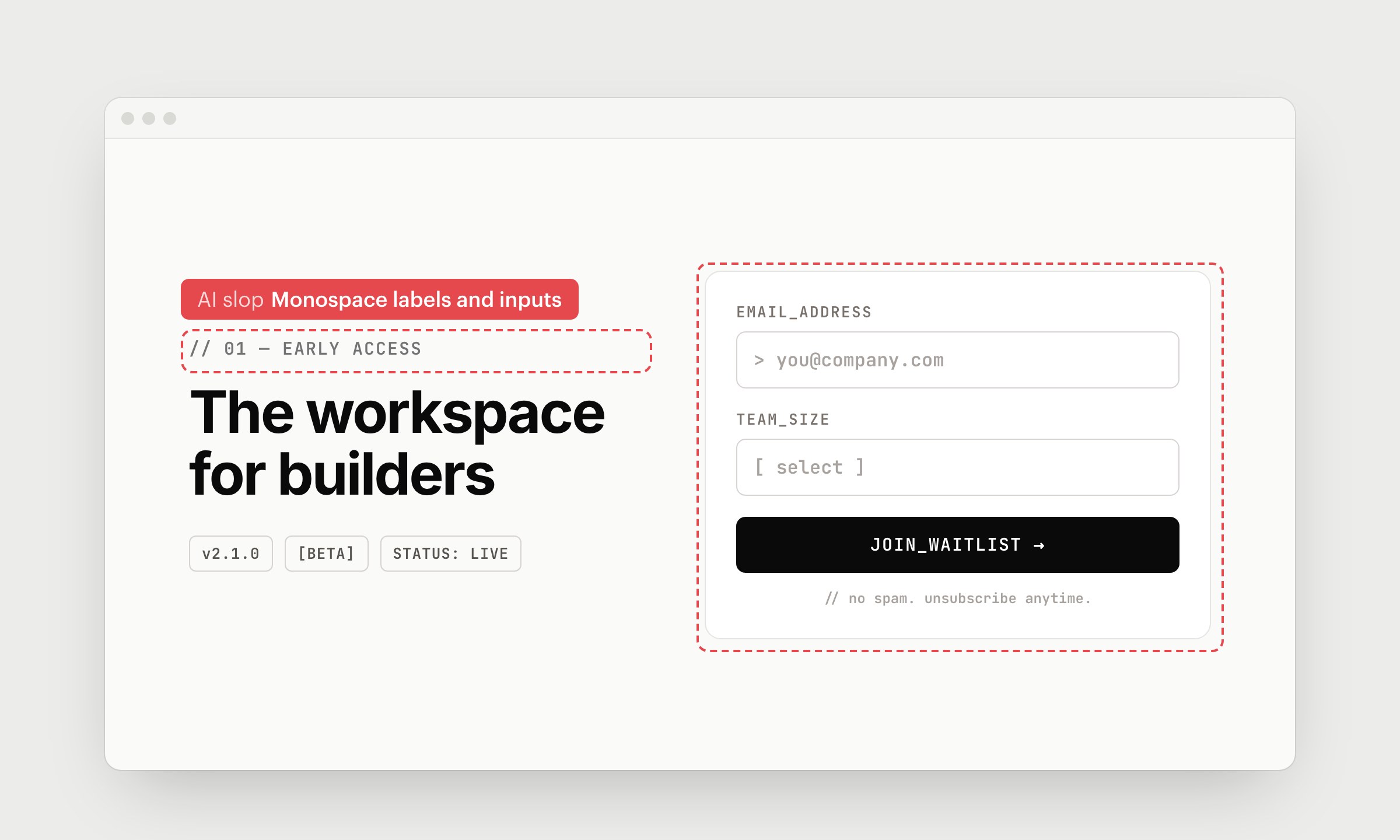
Monospace fonts make a page look technical, so AI uses them for labels, tags, inputs and buttons, often in caps with underscores. On a product for developers it can fit. On anything else it looks borrowed, and by now so many AI-made pages do it that it reads as a template.
Use monospace for code, numbers in tables and things people copy. Everything else reads better in your main font.
7. Numbers written as words
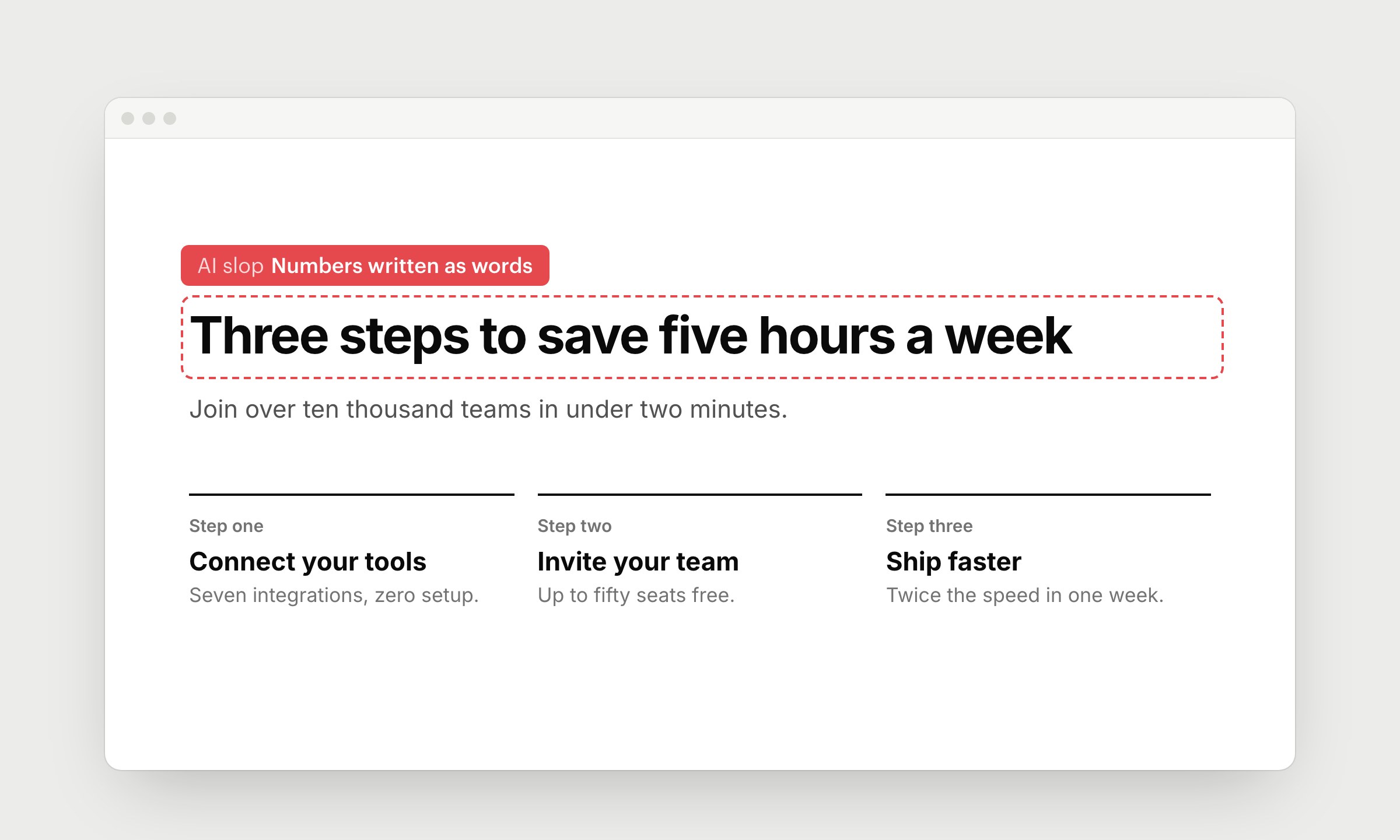
Models spell out numbers in headings, buttons and step labels. People scan a page for digits, so numbers in words slow them down and hide the most concrete part of your message. It's also one of the easiest AI signs to spot in text.
Write 3, not "three". The copy has more signs like this, see Signs of AI slop in writing.
8. Long titles full of nouns
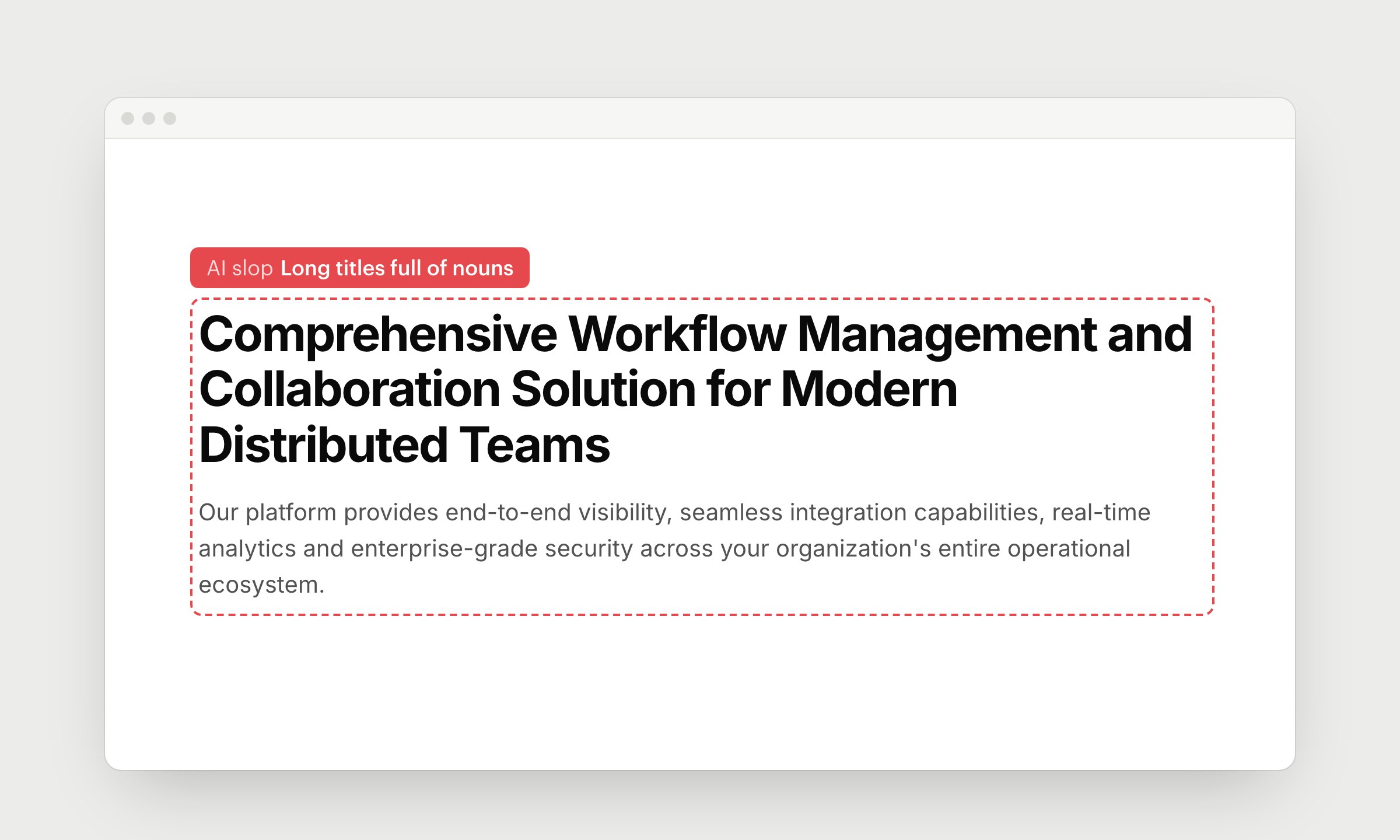
AI describes what the product is, so its titles sound like product categories and its descriptions are lists of features. Nobody can tell who the page is for or what changes for them. People skim headings, and a long string of nouns gives them nothing to hold on to.
Keep titles short and start them with a verb. Pitch the result for a specific person, and leave the feature list for later. "Close your books in 2 days" with "Finance teams match bank transactions and send reports from one place" under it says more than any list of nouns.
9. Emoji as icons
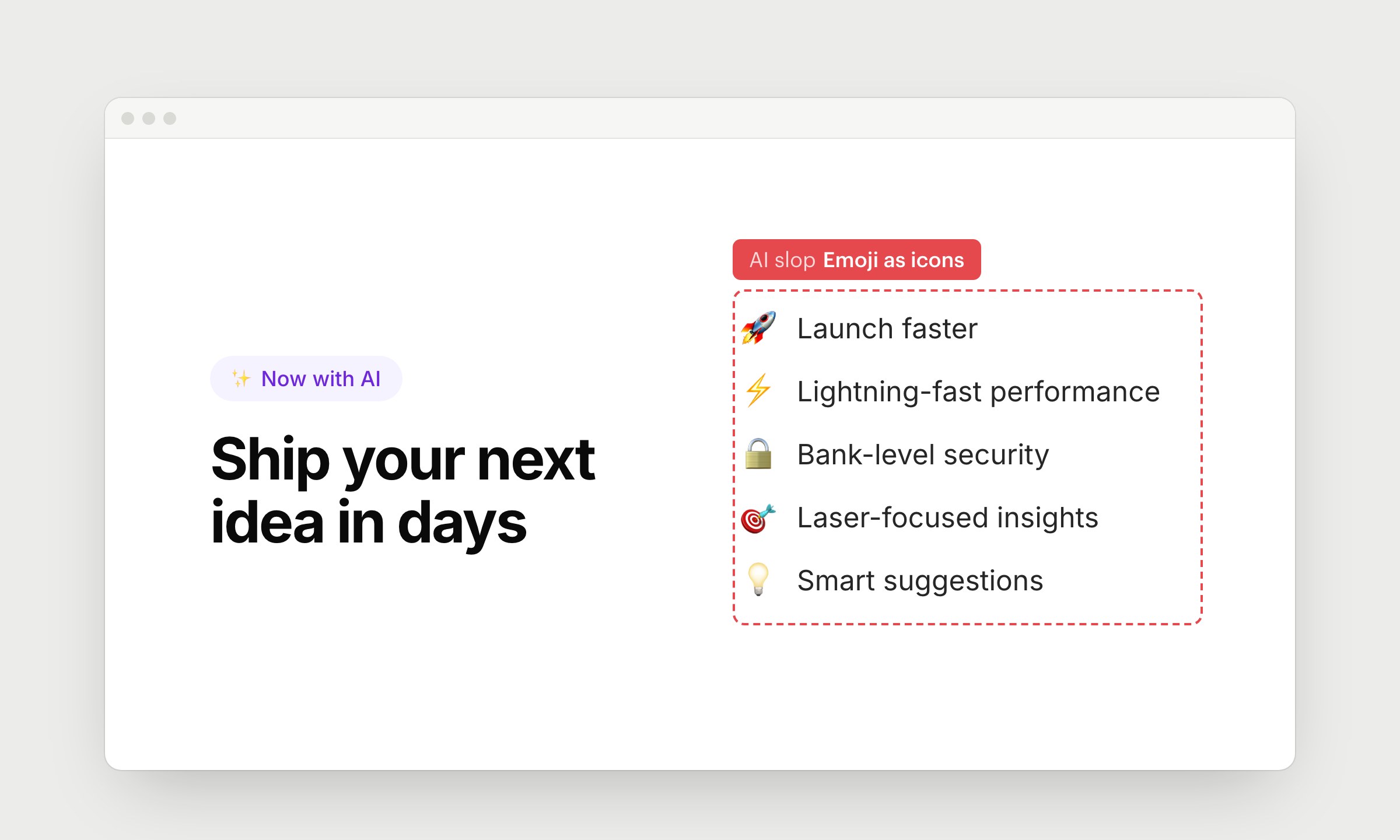
Emoji are the cheapest way for a model to add visuals, so they end up in pills, lists, buttons and headings. They look different on every device, don't match your icons or colors, and make a product page read like a chat message.
Pick 1 icon set and stick to it. Or skip icons, a plain list reads fine.
10. Placeholders instead of avatars, logos and images
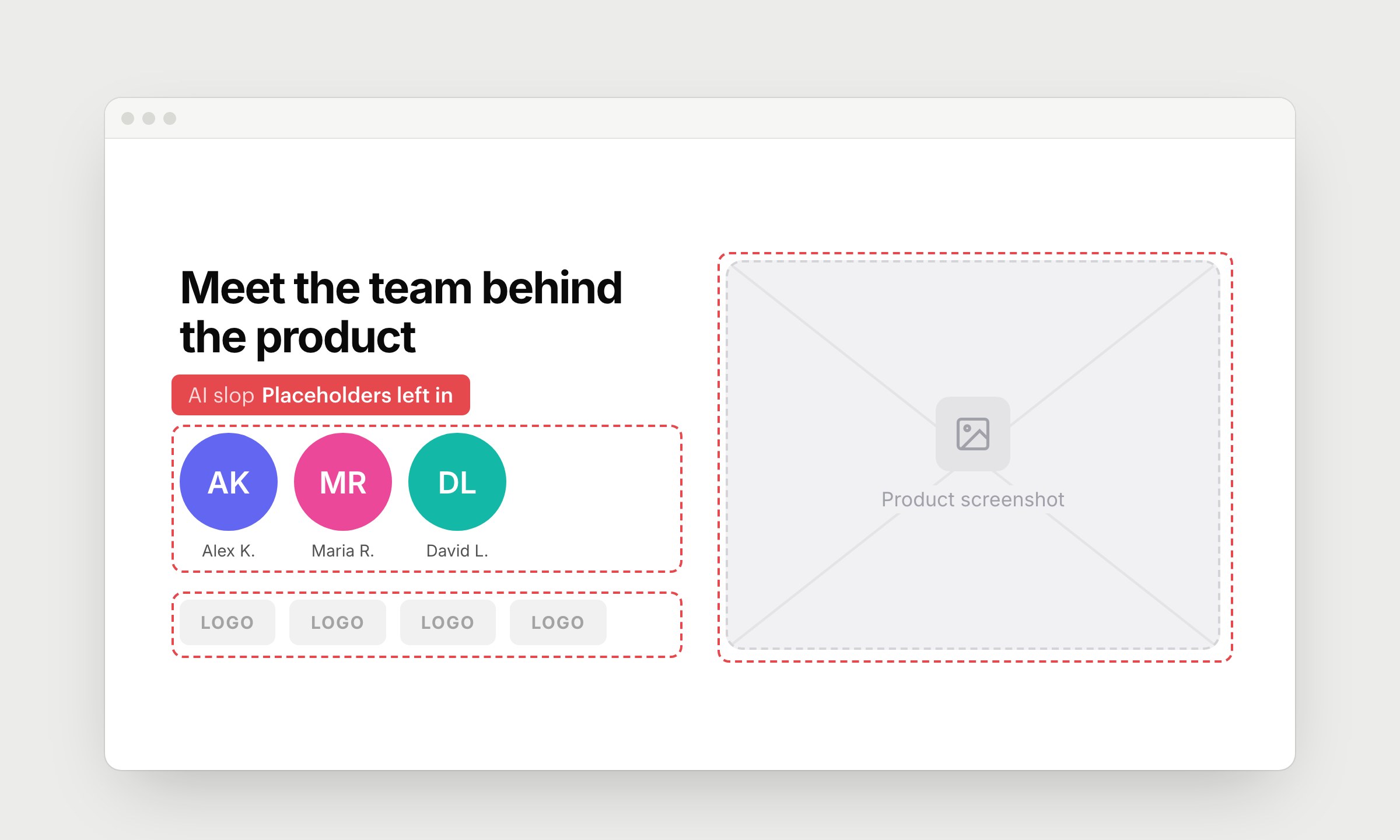
AI can't take a photo of your team or a screenshot of your app, so it leaves something in their place: initials in colored circles, grey logo boxes, empty frames with an image icon. These are meant to be replaced before launch, and often nobody does. A page without a single real image looks unfinished, and people notice.
Every important page needs at least 1 real image: a screenshot of your product or a photo of your team.
11. Overstuffed screens
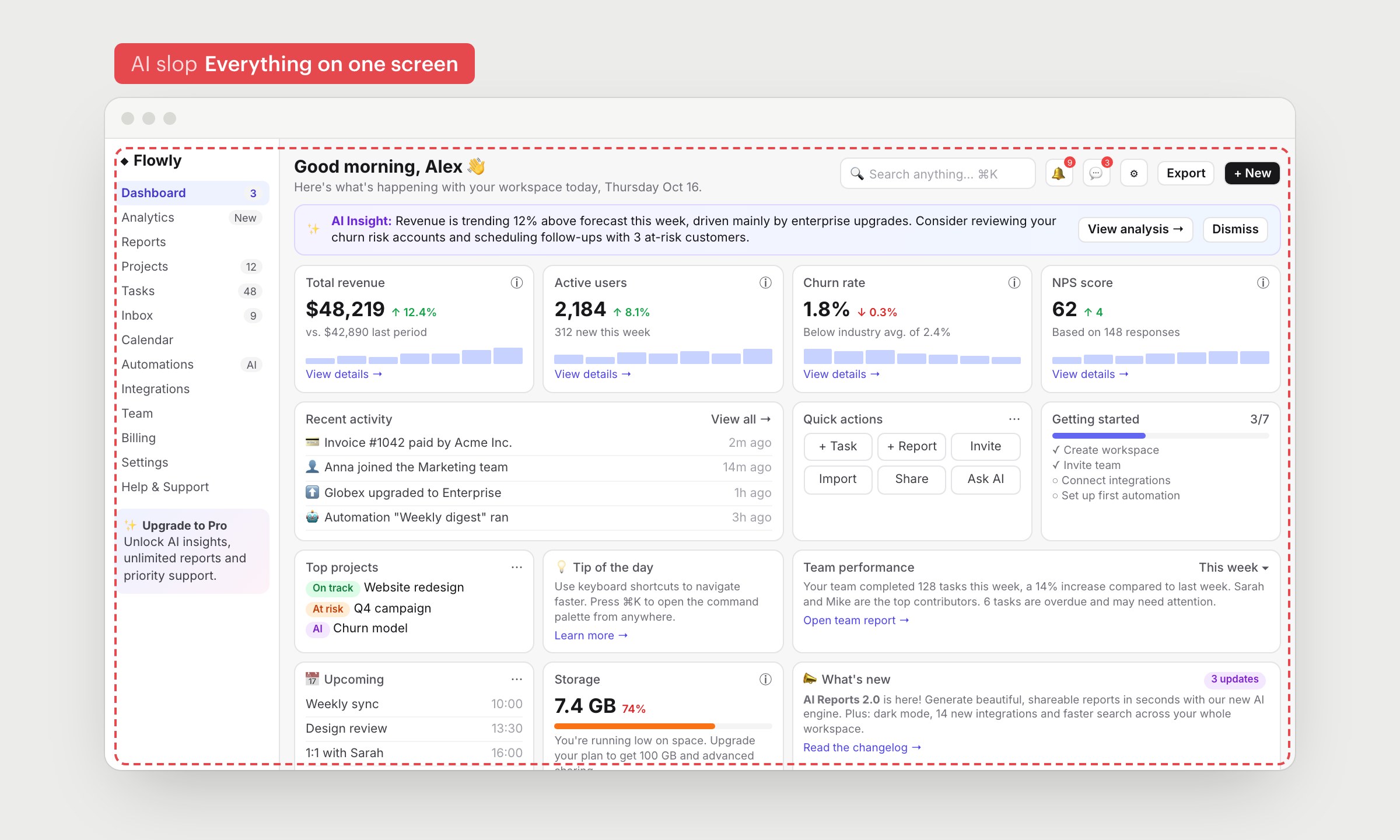
Adding an element costs AI nothing, so it keeps going. In apps it builds dashboards with a card for every metric, an AI insight banner, a tip of the day, a getting-started checklist, quick actions and a "What's new" box, each with its own paragraph and "View details" link. On landing pages it's chips, extra buttons, floating stats and banners. Each piece looks reasonable alone. Together they compete for attention, and people can't find the one thing they came for.
For every element, ask what the user does with it. If the answer is nothing, remove it. A dashboard should answer the 1 or 2 questions people open it for. A landing page needs a headline, a line under it, a button and a picture of the product.
12. Visual metaphors explained with labels
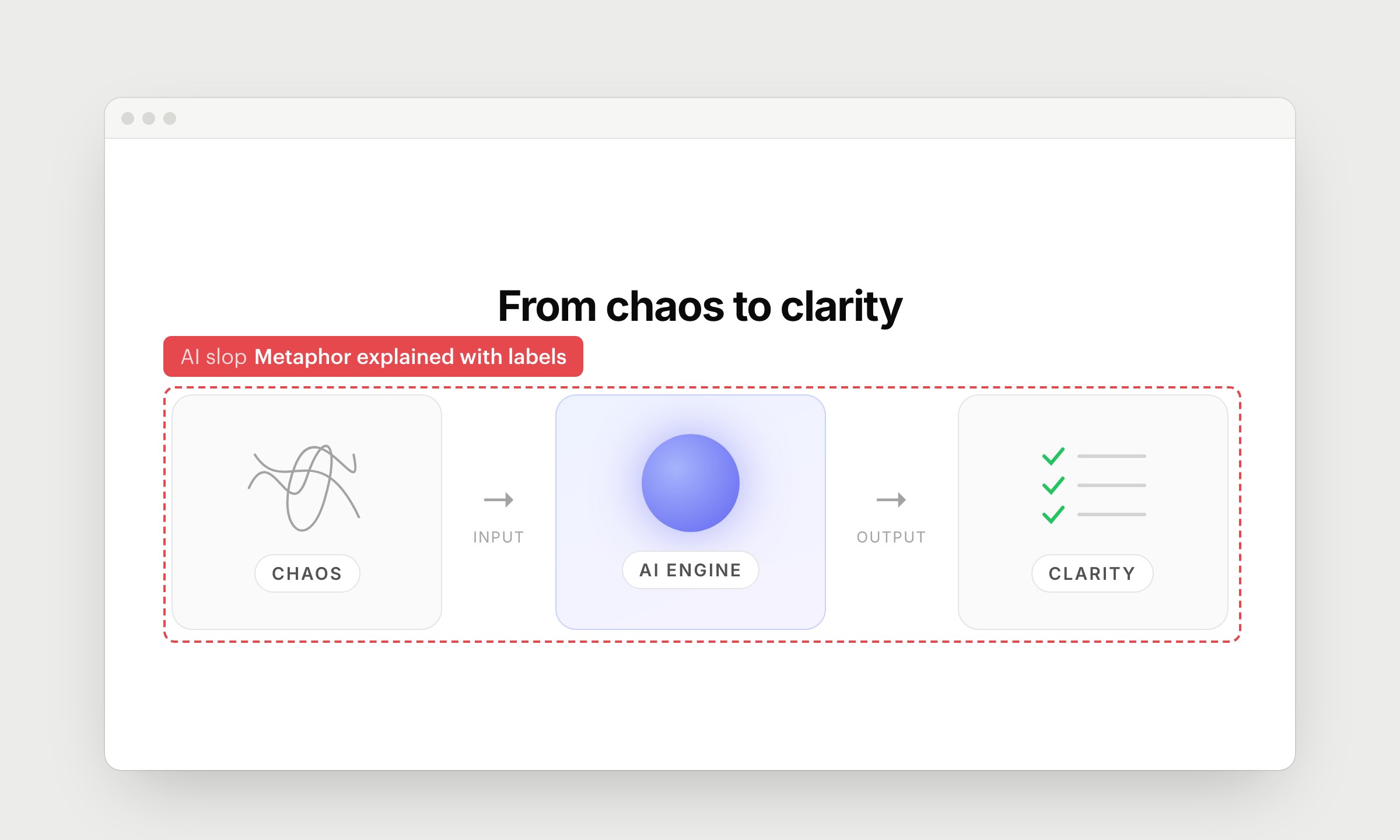
When AI wants to illustrate an idea, it draws simple shapes and writes the idea on them. A picture that needs a label to make sense adds nothing to the headline next to it. It takes space and makes the product feel abstract.
Show the real thing: what your customers use today and what they get with you. If you can't show it, write one clear sentence and skip the drawing.
13. Demos made of text
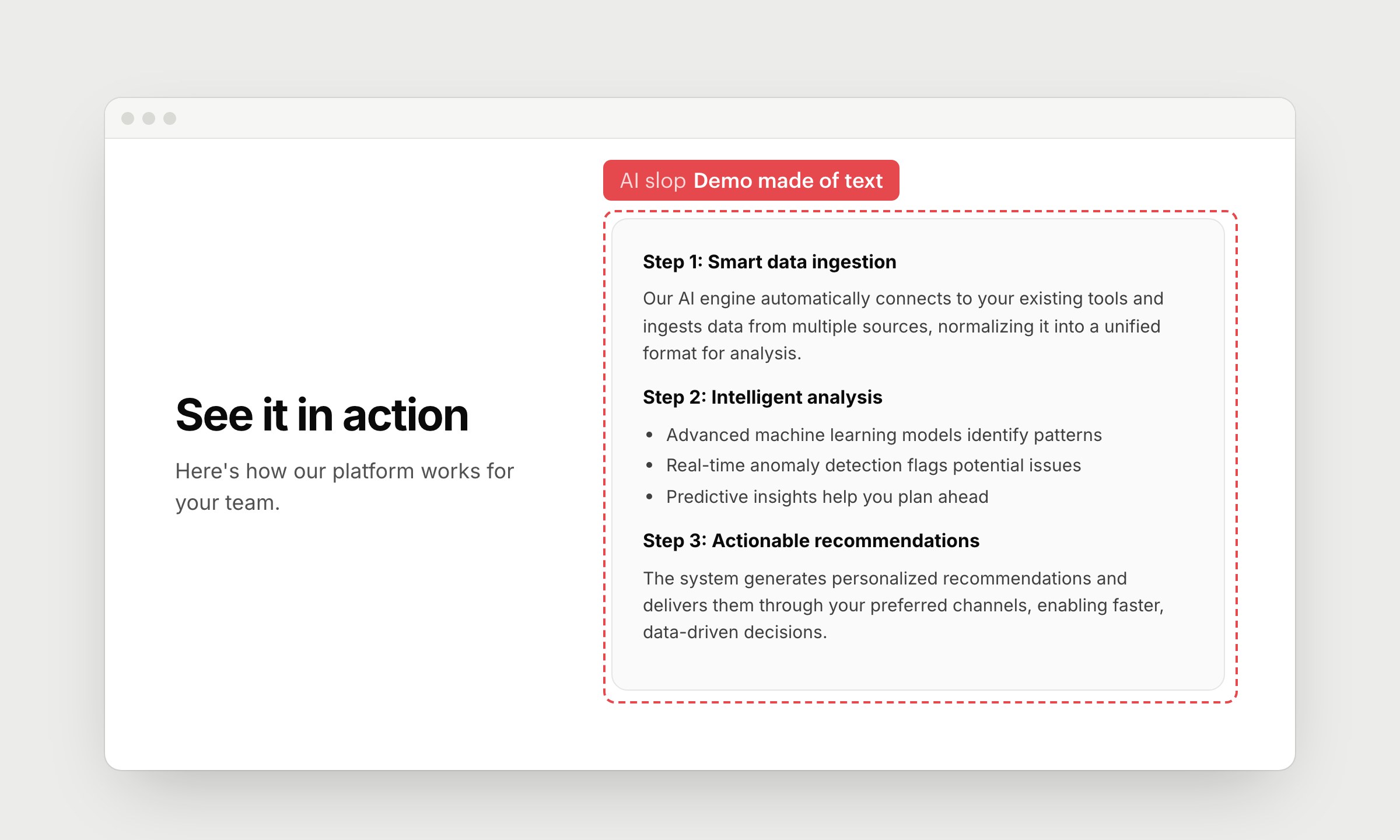
A demo section should show the product working. AI can describe your product much more easily than it can show it, so the demo turns into paragraphs and bullet points. People skip it, because reading about a product is not the same as seeing it.
Show the product doing the job: a screenshot, a short video or a GIF of 1 real task from start to finish. Keep the text to a caption.
14. Glass cards
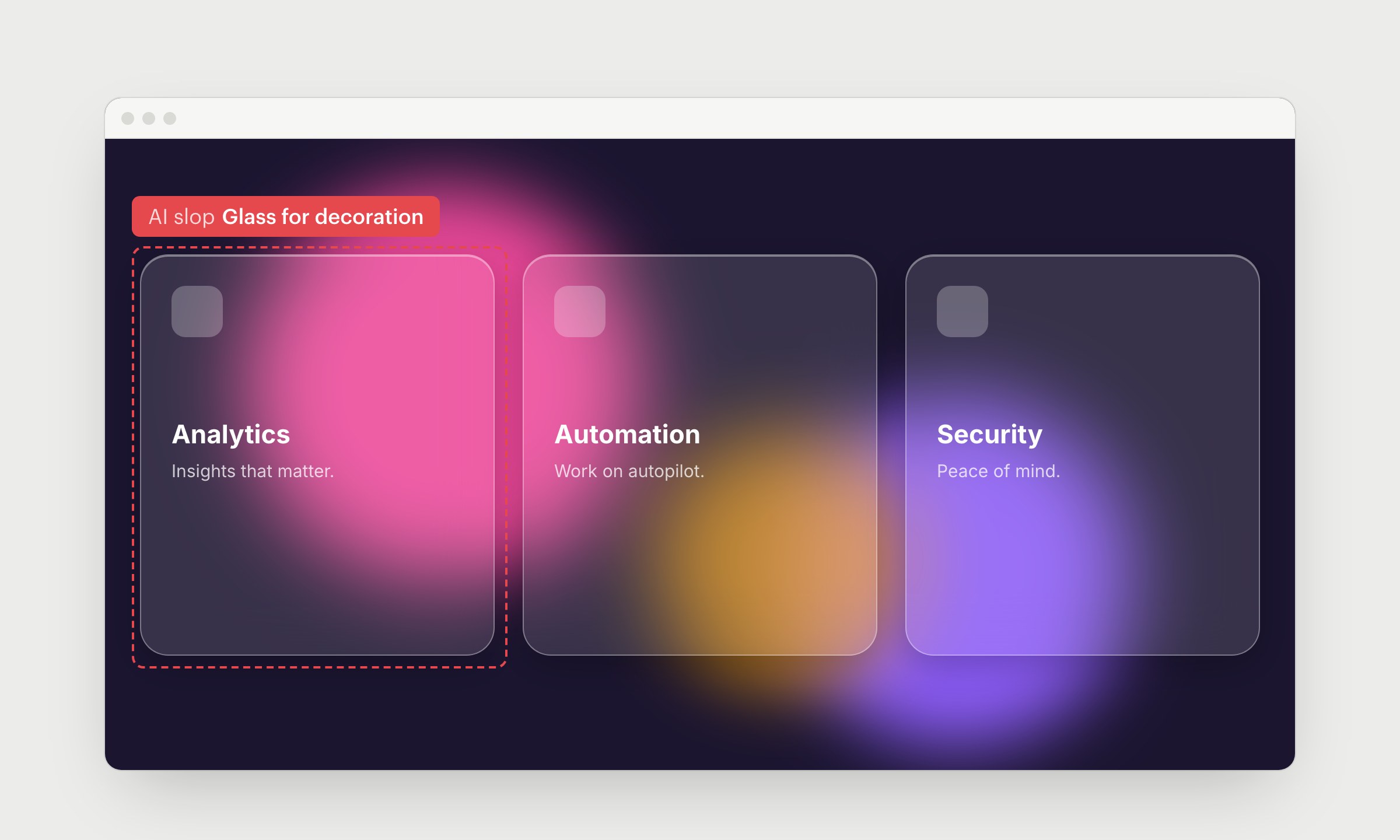
Frosted glass came back with new operating systems, and AI uses it as decoration. Blur makes sense when something sits on top of content, like a menu over a page. On static cards over color blobs, it lowers contrast, slows down the page and makes text harder to read.
15. Same radius and shadow on everything
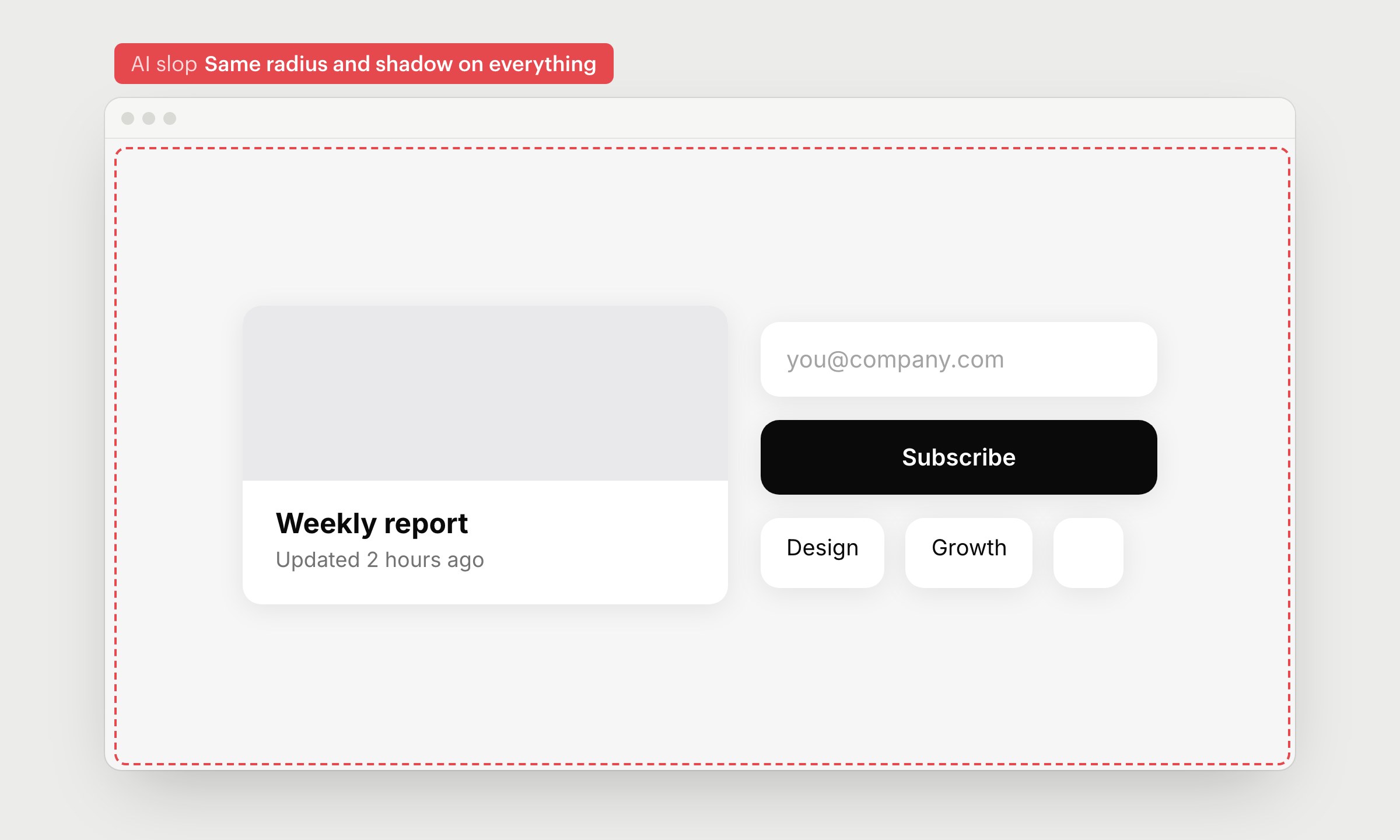
AI picks one corner radius and one soft shadow and applies them to everything. When a button, a card and an input all look alike, people can't tell what's clickable. The page also goes flat, because shape no longer shows what's important.
Give different things different shapes. Buttons and cards don't need the same corners, and most elements don't need a shadow at all.
16. Light gray text on white
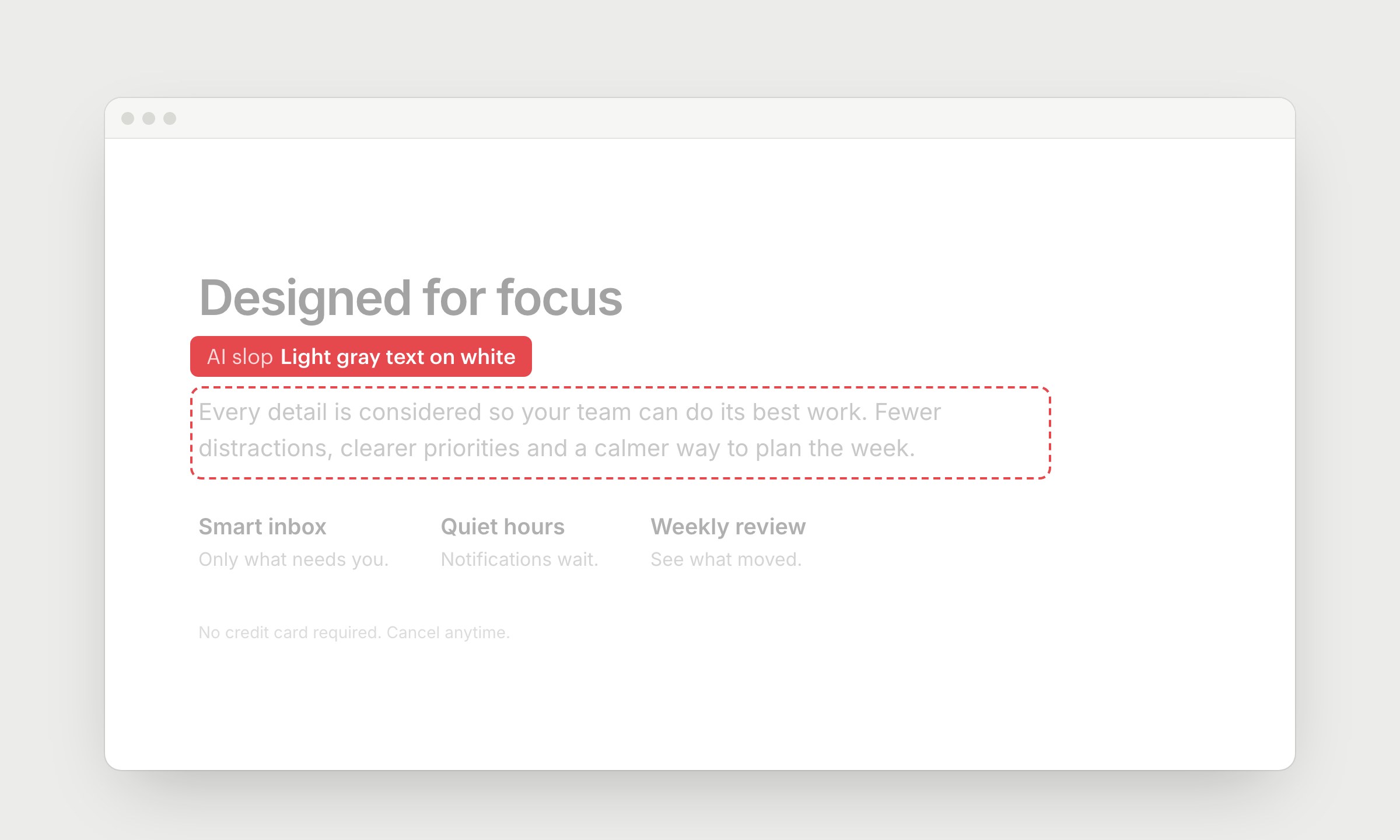
AI makes secondary text lighter and lighter to look "clean". It looks calm in a screenshot, but on a phone in the sun or for anyone with weaker eyes, the text disappears. It's also an accessibility failure that tools flag right away.
Body text needs a contrast of at least 4.5:1 against the background. Check it with any contrast checker, and keep light gray for things people can skip.
17. Animation and motion with nothing to say
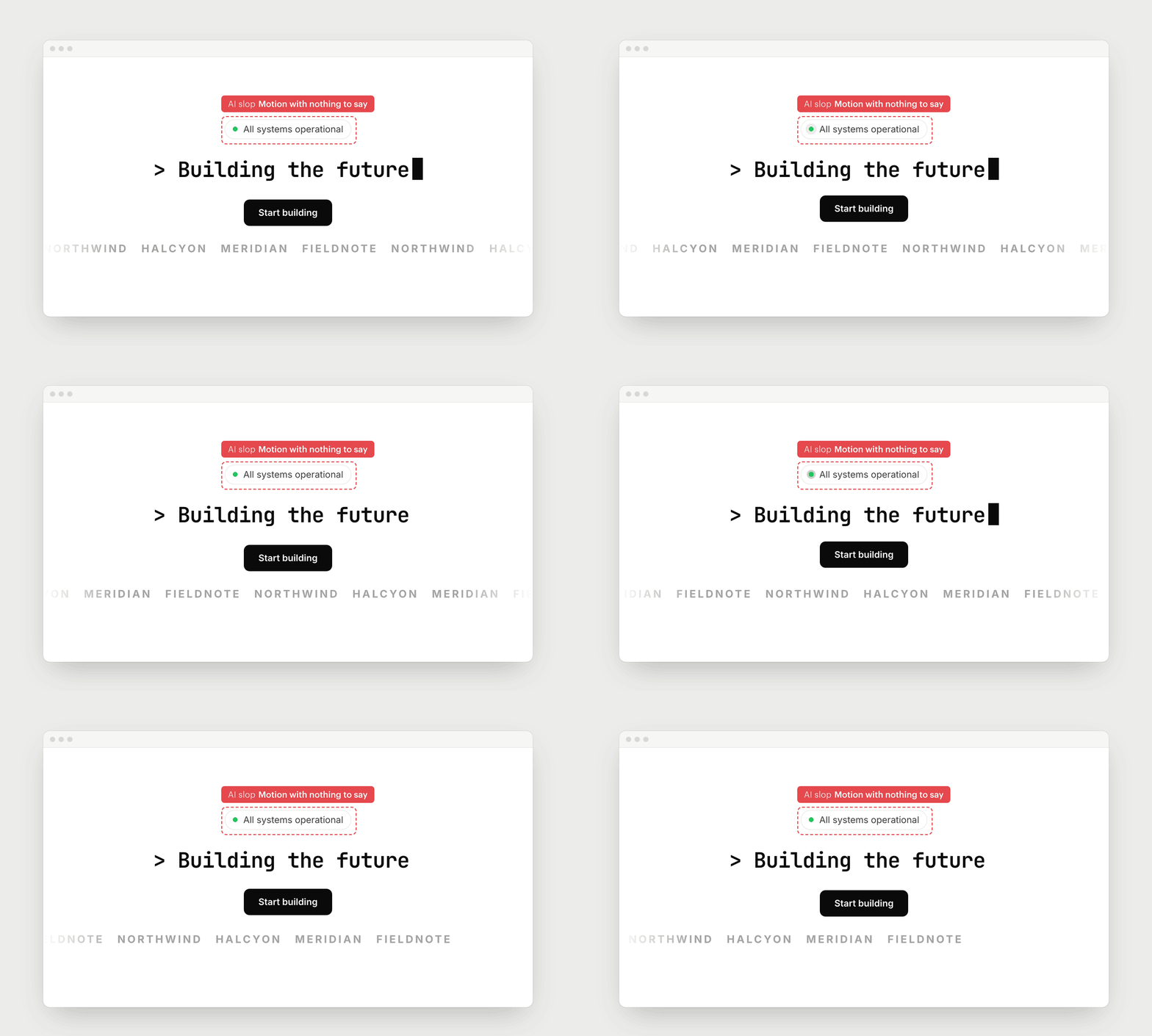
Pulsing dots, blinking cursors, bouncing buttons and scrolling logo strips are easy for AI to add. Motion pulls the eye, so when many things move at once, people can't focus on anything. It also makes the page feel busy even when nothing is happening.
Only animate things that change. If something moves on its own, let people pause it.
18. Heavy appear animations on every block
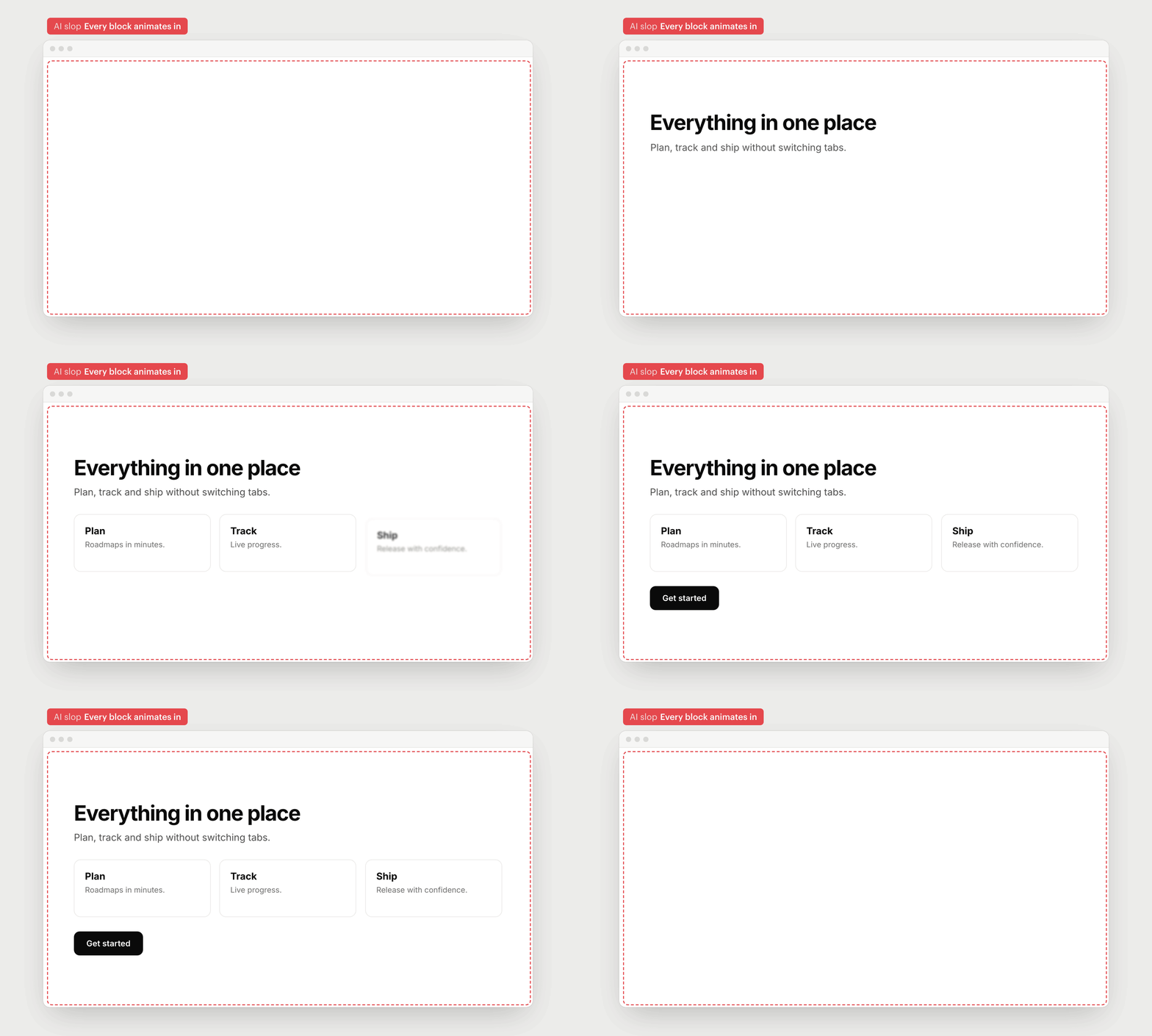
AI makes every block fade in, slide up and unblur as you scroll. The first time it looks smooth. After a few sections, people are waiting for the page to let them read. Fast scrollers see blank space, and if the script fails, the content never shows up.
Show content right away. If you want motion, animate 1 thing that matters, keep it short (under 300ms) and respect "reduce motion" settings.
19. Proof nobody can check
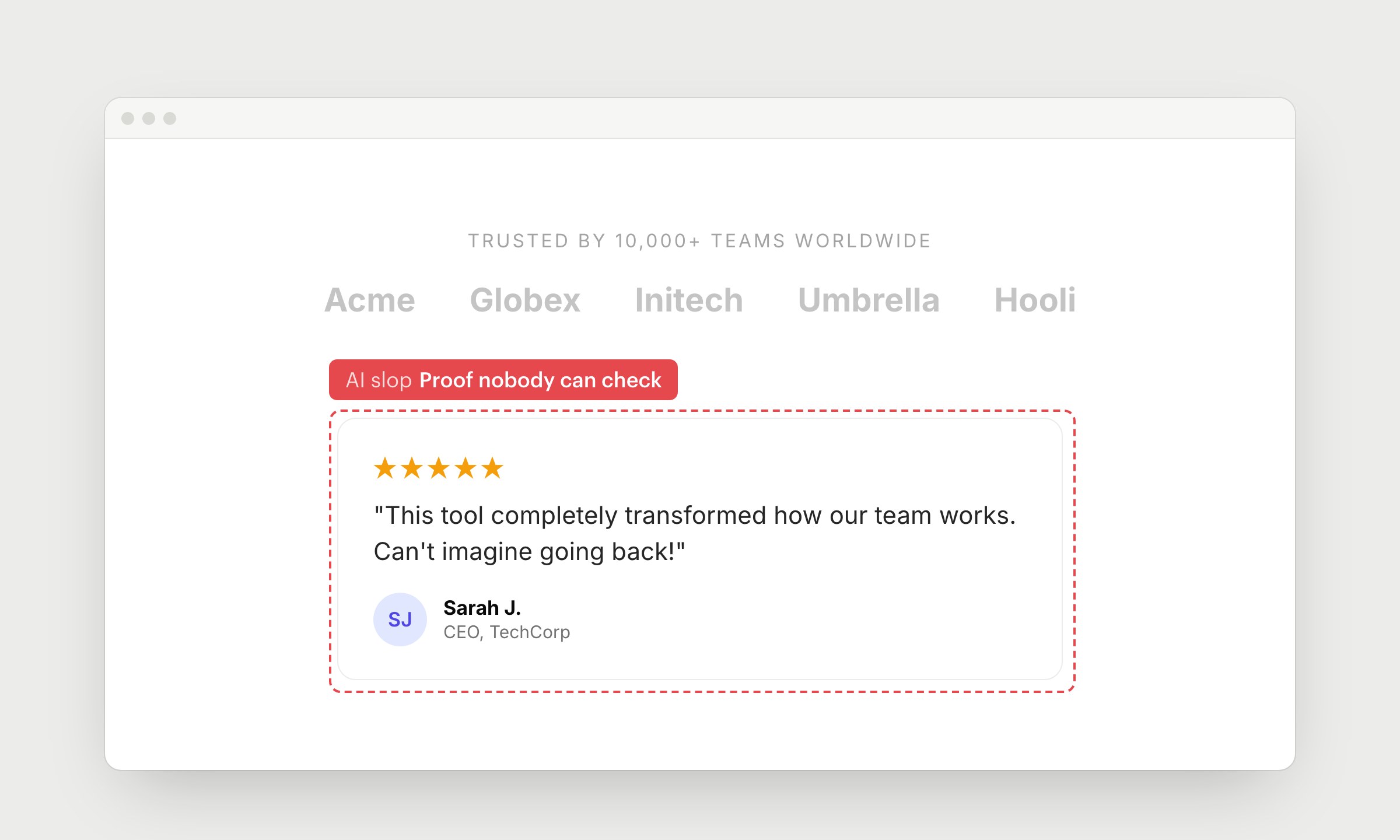
AI fills social proof with round numbers, generic logos and testimonials from people with a first name and an initial. Visitors have seen these blocks on hundreds of sites and don't believe them anymore. Fake proof is worse than none, because it makes people doubt the rest of the page.
Use real names, roles and photos, and link to the source. If you don't have proof yet, leave the section out.
20. Purple gradients
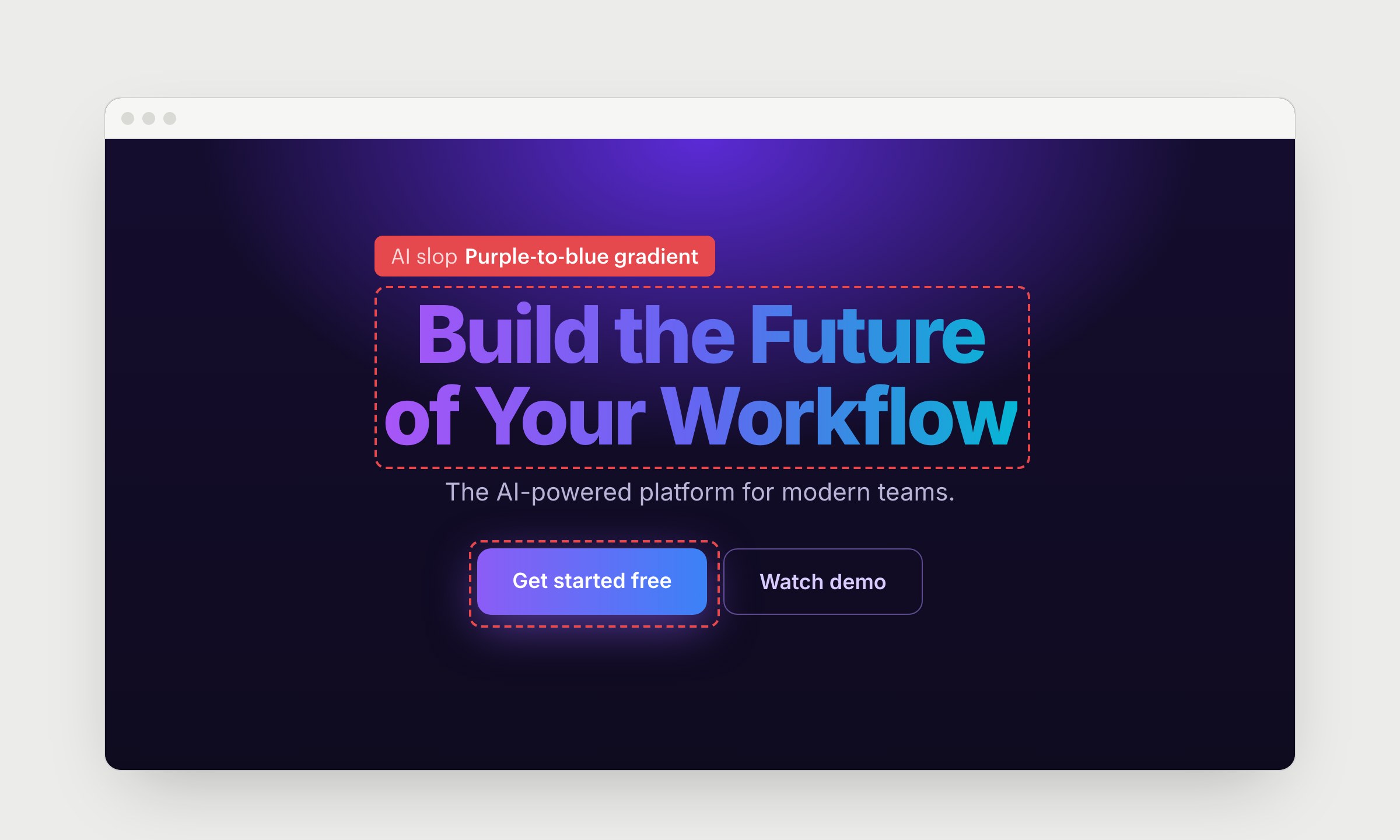
Purple-to-blue was the default look of AI products around 2022, and models still reach for it on buttons, headlines and backgrounds. It says "AI startup" before people read a word, whatever your product does. Gradient text is the worst case, because it's also harder to read.
Pick colors that fit your product. Use one solid color for text and make important words bigger or bolder.
21. Glow, neon and grid lines on dark
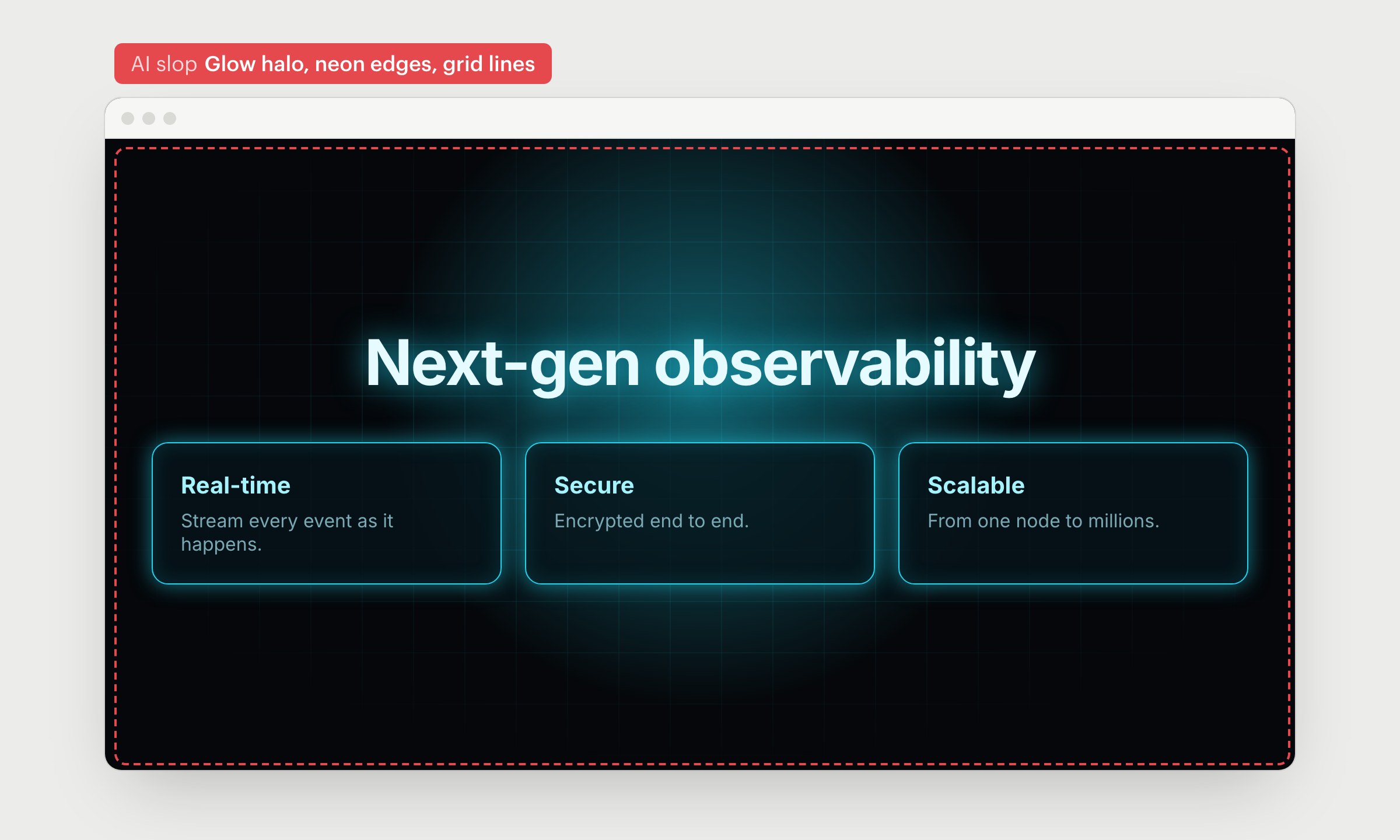
On dark pages, AI adds a glow behind the hero, neon edges on cards and a faint grid in the background. Glow is a way to point at something. When everything glows, nothing stands out, and the page looks like a template.
Remove the glow and the grid (grids belong on maps and canvases). Keep a little neon only where you want people to look.
How to keep your design from looking like everyone else's:
- Show the agent real products you like before it starts, and give it your brand colors and fonts
- Make 1 thing on the page memorable and keep the rest simple
- Use real screenshots, photos and quotes
- Ask the agent to critique the page before you ship it
Design skills help too. Anthropic's frontend-design skill tells Claude to avoid Inter, purple gradients and emoji icons, and Impeccable can scan a page for most of the signs above. They catch the obvious stuff, but you still need to look at the page yourself.
AI gets you to an average page fast. The rest is up to you.
PRO tip: If your page already looks like this, give your coding agent this prompt:
Ship faster than
your competition
Focus on customers and sales while we handle product delivery. Hire a dedicated AI maker or a whole product team.
Launch new products
Fix your delivery
Hit fundraising milestones
[Analytics Chart]
Wireframe v0.1
Sarah Chen CEO, Founder
$127k
MRR
2,847
Customers
+23%
Growth
Sales Performance
Latest Deal
Enterprise plan closed
Acme Corp · $12k/mo


Services
Industries
Hire
Claude Code Devs Next.js DevsReact DevsReact Native DevsSupabase DevsLovable DevsAI EngineersFull-stack Devs Upwork Alternative
AI Tools
Resources
Kickstart No-Code Stack Tech Stack Tech Trends AI SaaS Skills MCP Servers Academy Help Center Blog Changelog
Our products


'%3e%3cpath%20fill-rule='evenodd'%20clip-rule='evenodd'%20d='M2500%201250C2500%201940.36%201940.36%202500%201250%202500C559.644%202500%200%201940.36%200%201250C0%20559.644%20559.644%200%201250%200C1940.36%200%202500%20559.644%202500%201250ZM1030.7%20697.9C986.2%20688.4%20937%20683.6%20883.1%20683.6H350V1816.5H899.1C949.1%201816.6%20999%201810.2%201047.4%201797.5C1095.5%201784.8%201138.3%201765.3%201175.9%201738.8C1213.5%201712.4%201243.4%201678.3%201265.6%201636.5C1287.8%201594.7%201298.9%201545.2%201298.9%201488.1C1298.9%201417.2%201281.7%201356.6%201247.3%201306.4C1212.9%201256.2%201160.8%201221%201091%201200.9C1141.7%201176.6%201180.1%201145.4%201206%201107.3C1231.9%201069.2%201244.9%201021.6%201244.9%20964.5C1244.9%20911.6%201236.2%20867.2%201218.7%20831.2C1201.2%20795.2%201176.6%20766.4%201144.9%20744.7C1113.2%20723%201075.2%20707.4%201030.7%20697.9ZM960.9%201110.4C932.3%201131.5%20895.8%201142.1%20851.4%201142.1L599.2%201142.3V877.3H832.3C853.9%20877.2%20875.4%20879.1%20896.6%20882.8C917.2%20886.5%20935.4%20893.1%20951.3%20902.6C967.2%20912.1%20979.9%20925.4%20989.4%20942.3C998.9%20959.2%201003.7%20980.9%201003.7%201007.3C1003.8%201054.9%20989.5%201089.2%20960.9%201110.4ZM935.5%201615.7C912.6%201620.5%20889.2%201622.9%20865.7%201622.8L599.2%201622.9V1311.9H870.5C924.4%201311.9%20967.8%201324.3%201000.6%201349.2C1033.4%201374%201049.8%201415.6%201049.8%201473.7C1049.8%201503.3%201044.7%201527.7%201034.7%201546.7C1024.6%201565.7%201011.1%201580.8%20994.2%201591.9C977.3%201603%20957.7%201610.9%20935.5%201615.7ZM1758.3%201648.2C1694.8%201648.2%201646.1%201631.8%201612.3%201599C1578.5%201566.3%201560%201513.4%201556.9%201440.7H2148.7C2152.9%201377.2%202147.6%201316.4%202132.8%201258.2C2118%201200%202093.9%201148.2%202060.6%201102.7C2027.3%201057.2%201984.7%201021%201932.9%20994C1881%20967%201820.2%20953.5%201750.4%20953.5C1688%20953.5%201631.1%20964.6%201579.8%20986.8C1528.5%201009%201484.3%201039.4%201447.3%201078C1410.3%201116.6%201381.7%201162.3%201361.6%201215.2C1341.5%201268.1%201331.5%201325.2%201331.5%201386.5C1331.5%201449.9%201341.3%201508.1%201360.8%201561C1380.3%201613.9%201408.1%201659.3%201444.1%201697.4C1480.1%201735.5%201524%201764.9%201575.8%201785.5C1627.6%201806.1%201685.8%201816.4%201750.3%201816.4C1843.4%201816.4%201922.7%201795.2%201988.3%201752.9C2053.9%201710.6%202102.6%201640.3%202134.3%201541.9H1936C1928.6%201567.3%201908.5%201591.4%201875.7%201614.1C1842.9%201636.8%201803.8%201648.2%201758.3%201648.2ZM1744%201123.1C1799%201123.1%201840%201137.9%201867%201167.5C1893.9%201197.1%201912.7%201240.5%201923.4%201297.5H1556.9C1557.9%201281.7%201561.4%201263.7%201567.2%201243.6C1573%201223.5%201583%201204.5%201597.3%201186.5C1611.6%201168.5%201630.6%201153.5%201654.4%201141.3C1678.1%201129.2%201708%201123.1%201744%201123.1ZM1976.2%20741.1H1518.3V868.1H1976.2V741.1Z'%20fill='white'/%3e%3c/g%3e%3cdefs%3e%3cclipPath%20id='clip0_52_236'%3e%3crect%20width='2500'%20height='2500'%20fill='white'/%3e%3c/clipPath%3e%3c/defs%3e%3c/svg%3e)
'%3e%3cpath%20d='M444.031%20372.208C477.51%20456.911%20502.37%20544.115%20518.526%20633.203C541.573%20619.151%20563.115%20602.266%20582.693%20582.693C633.547%20531.833%20666.365%20467.75%20677.958%20398.198C628%20377.531%20573.286%20366.094%20515.948%20366.094C491.438%20366.094%20467.417%20368.208%20444.031%20372.208V372.208Z'%20fill='white'/%3e%3cpath%20d='M582.979%20100.266C582.88%20100.172%20582.786%20100.068%20582.693%2099.974C518.219%2035.5052%20432.505%20-7.62939e-06%20341.333%20-7.62939e-06C305.682%20-7.62939e-06%20270.865%205.45312%20237.828%2015.9219C290.781%2082.2656%20337.365%20153.068%20377.286%20227.896C452.495%20195.964%20521.771%20152.698%20582.979%20100.266Z'%20fill='white'/%3e%3cpath%20d='M609.797%20130.479C545.589%20185.63%20473.839%20230.323%20395.761%20263.724C407.271%20286.896%20418.141%20310.437%20428.401%20334.328C457.052%20328.875%20486.287%20326.094%20515.948%20326.094C573.401%20326.094%20629.282%20336.427%20682.308%20356.766C682.537%20351.641%20682.667%20346.5%20682.667%20341.339C682.667%20263.88%20657.032%20190.375%20609.797%20130.479V130.479Z'%20fill='white'/%3e%3cpath%20d='M131.234%20610.401C190.99%20657.255%20264.208%20682.667%20341.333%20682.667C390.354%20682.667%20437.792%20672.385%20481.203%20652.875C464.932%20558.594%20438.88%20467.625%20404.12%20381.047C283.323%20414.016%20183.802%20499.026%20131.234%20610.401V610.401Z'%20fill='white'/%3e%3cpath%20d='M334.88%20362.656C352.438%20355.229%20370.333%20348.938%20388.51%20343.76C378.917%20321.792%20368.74%20300.135%20358.031%20278.786C265.818%20313.026%20168.854%20330.375%2069.25%20330.375C46.1094%20330.375%2023.1198%20329.422%200.296875%20327.557C0.114583%20332.135%200%20336.729%200%20341.339C0%20432.51%2035.5052%20518.224%2099.974%20582.693C99.9948%20582.714%20100.021%20582.734%20100.042%20582.755C122.339%20538.286%20151.5%20497.87%20187.031%20462.333C229.745%20419.625%20279.484%20386.089%20334.88%20362.656Z'%20fill='white'/%3e%3cpath%20d='M339.323%20242.859C298.818%20167.844%20251.427%2097.0677%20198.016%2031.3698C162.021%2048.0417%20128.859%2071.0885%2099.974%2099.974C48.3281%20151.62%2015.2917%20216.906%204.1875%20287.708C25.6458%20289.464%2047.3438%20290.375%2069.25%20290.375C164.052%20290.375%20255.016%20273.594%20339.323%20242.859Z'%20fill='white'/%3e%3c/g%3e%3cdefs%3e%3cclipPath%20id='clip0_107_362'%3e%3crect%20width='682.667'%20height='682.667'%20fill='white'/%3e%3c/clipPath%3e%3c/defs%3e%3c/svg%3e)
© 2026 Paralect, Inc 651 N Broad St, Suite 206, Middletown, 19709, Delaware, United States